Want to save your favourite jobs to apply later?
1. Log in to your candidate Connect portal at atlas.workland.com
2. On a different tab, visit the career page of the company you're interested in. You should be able to find their career section on their website. Make sure you're on the ATLAS-related career page by checking the URL.
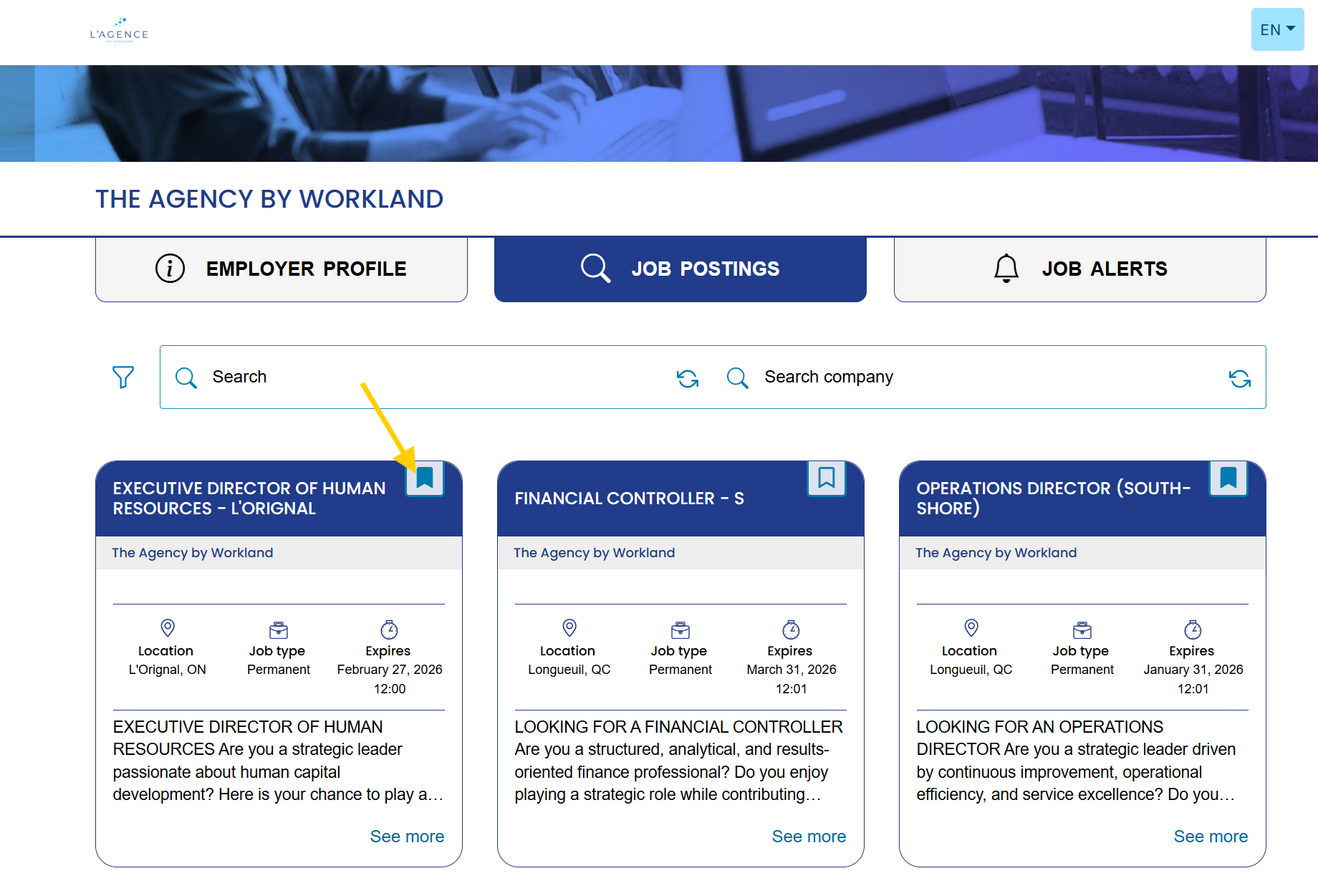
3. Select the jobs that interest you to save them as your favourites. If you do not see the save icon on the job, you are not connected to your candidate account; you have to go back to the first step.
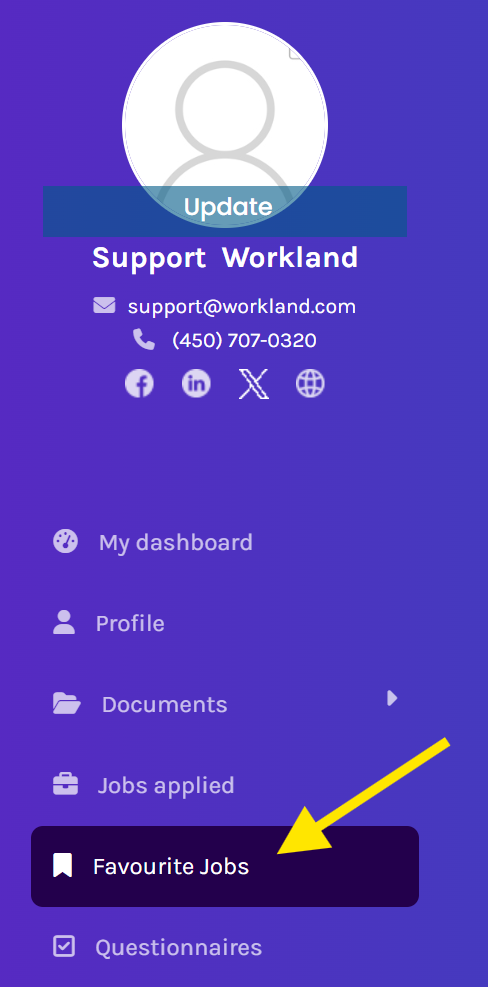
4. Click back to your candidate portal, go into the section and select "Favourite Jobs". Please refresh if you don't see any.
5. Once you're ready to apply, select the jobs or all jobs in order to do a mass apply.
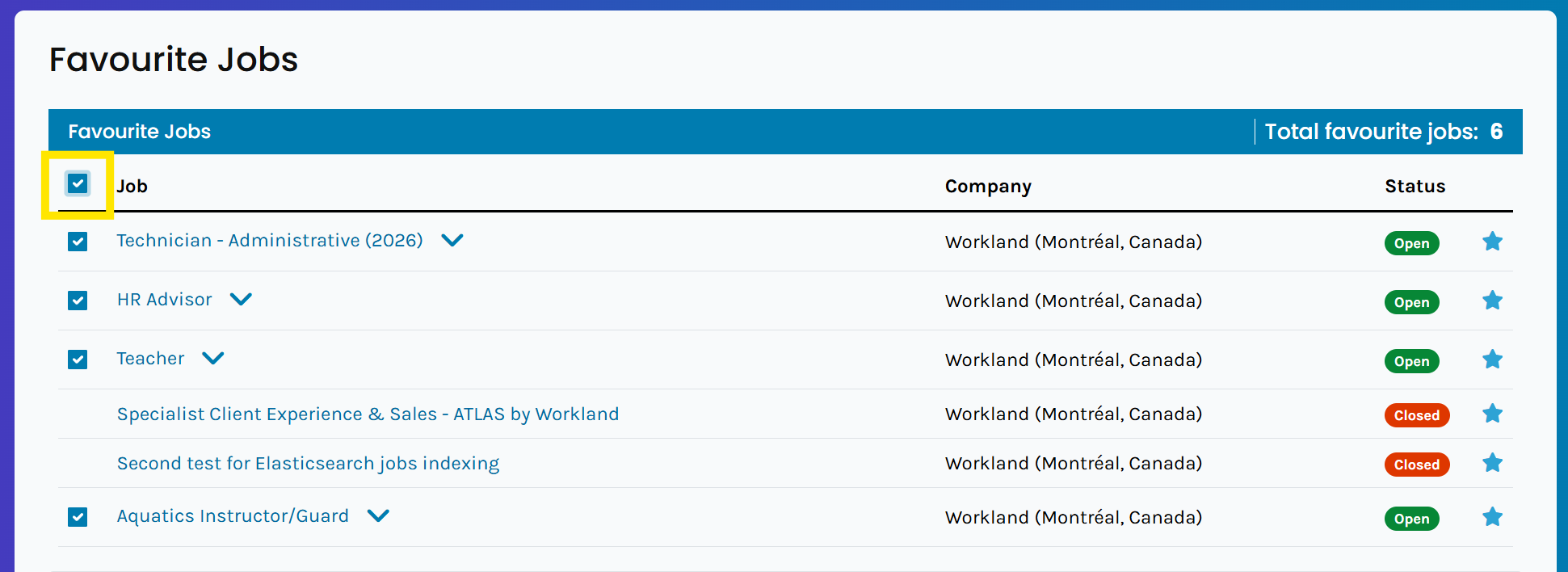
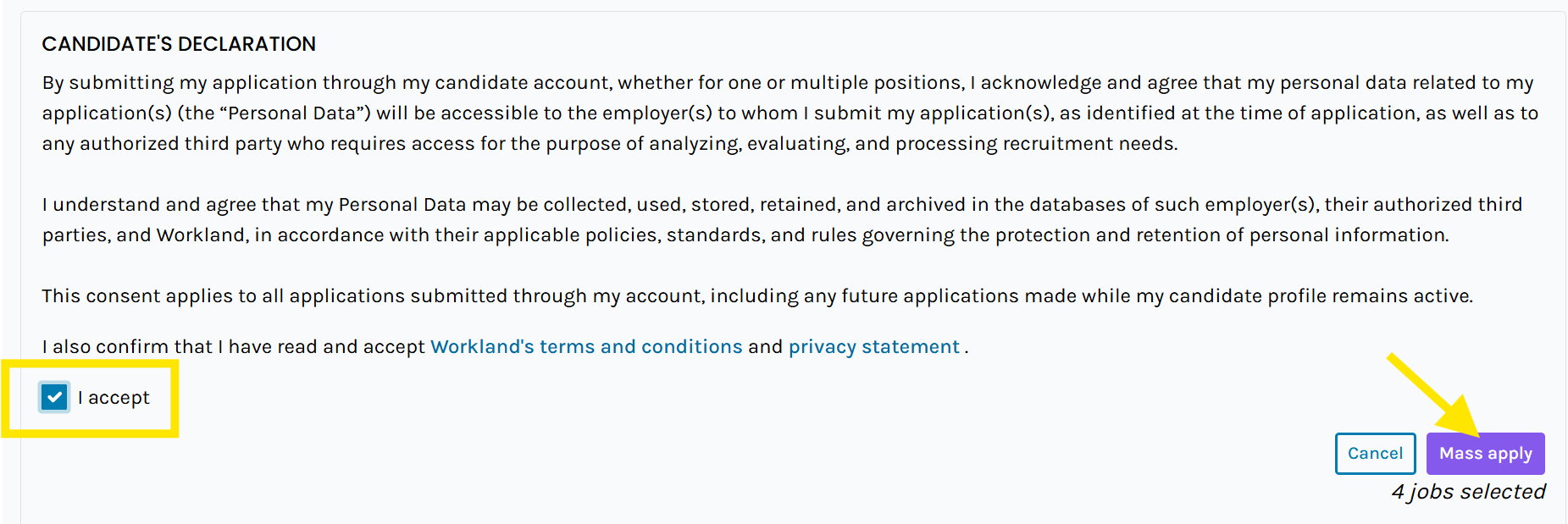
Note: Status is relate to the job posting and not the status of your application. For example, Open means that the job is still published and that you can still apply. This will open a candidate declaration that you must accept before selecting "Mass apply" and submitting all your applications.
You will then receive a confirmation message that will let you know which CV is selected as the default, so you can cancel and change it. It will also make you aware that if a client asks for more than just a CV (which is the case in most instances), your applications will be incomplete and not sent to the employer.
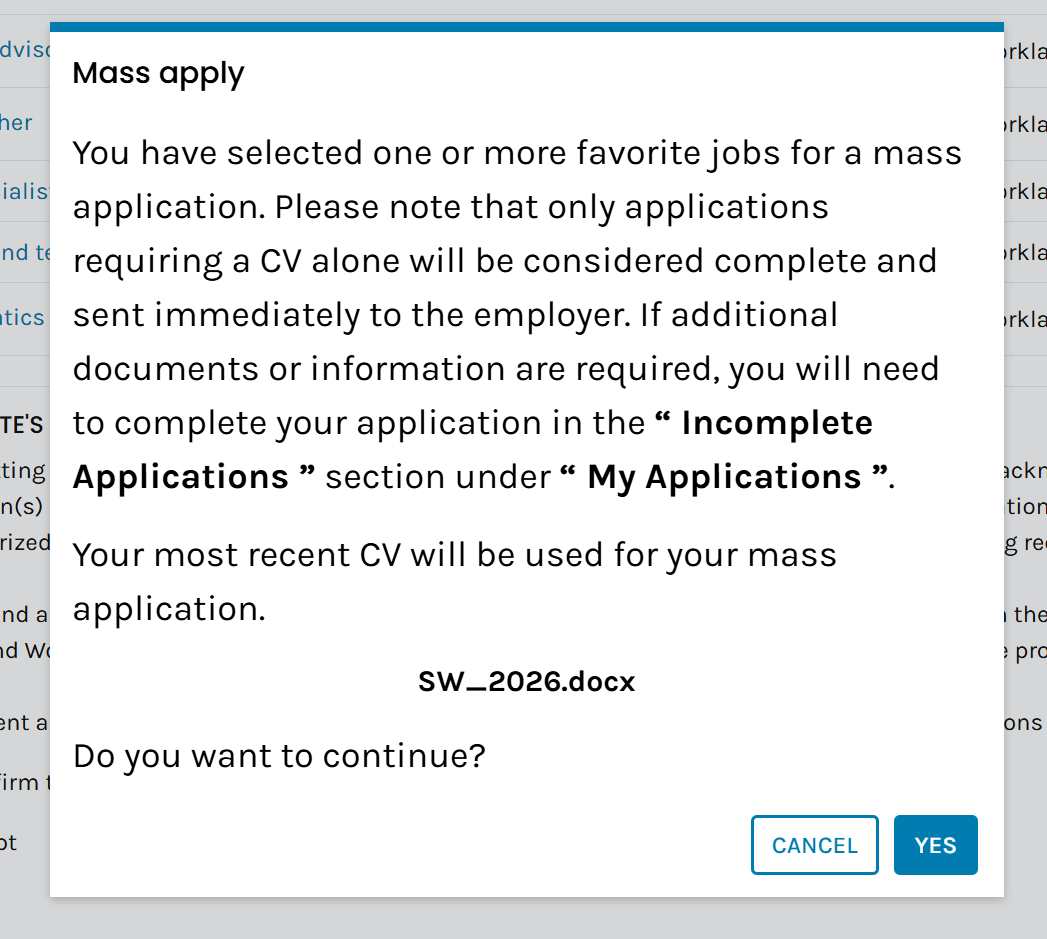
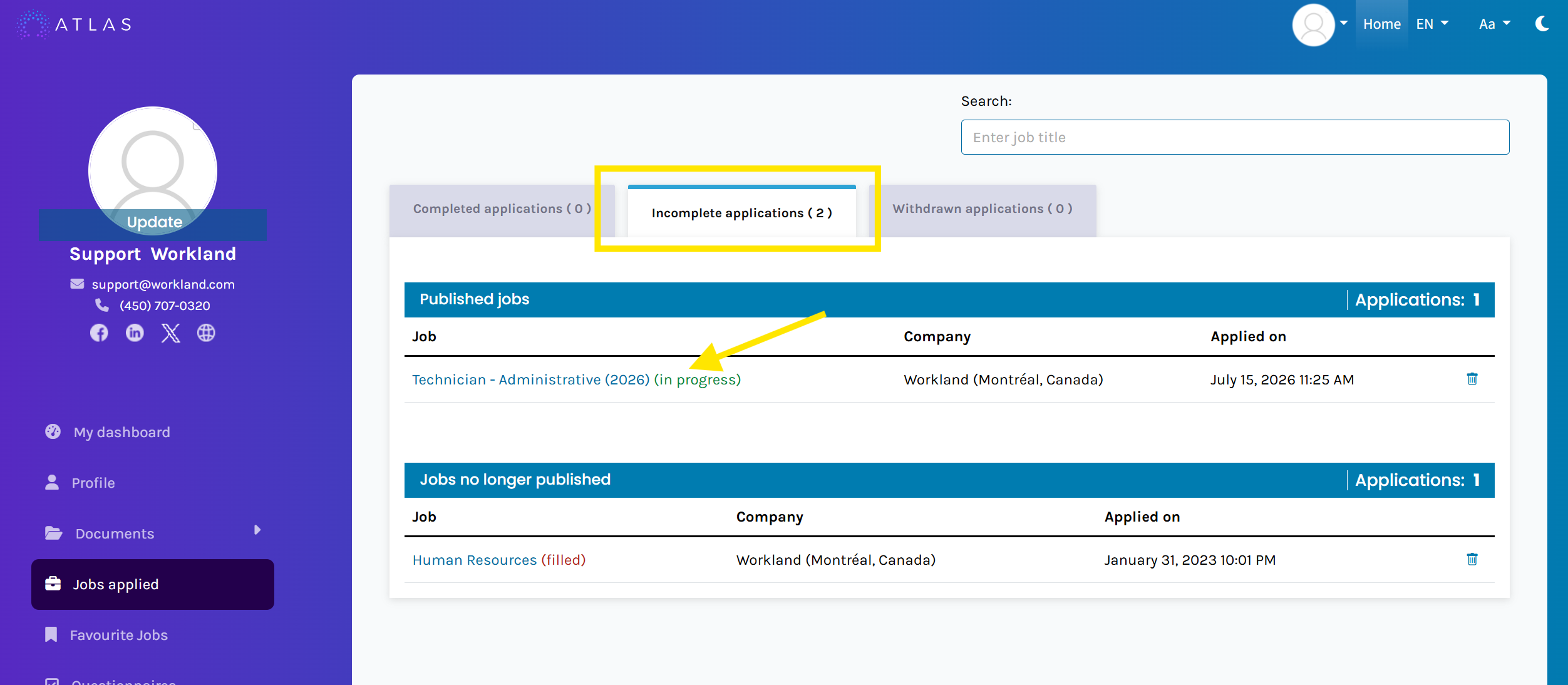
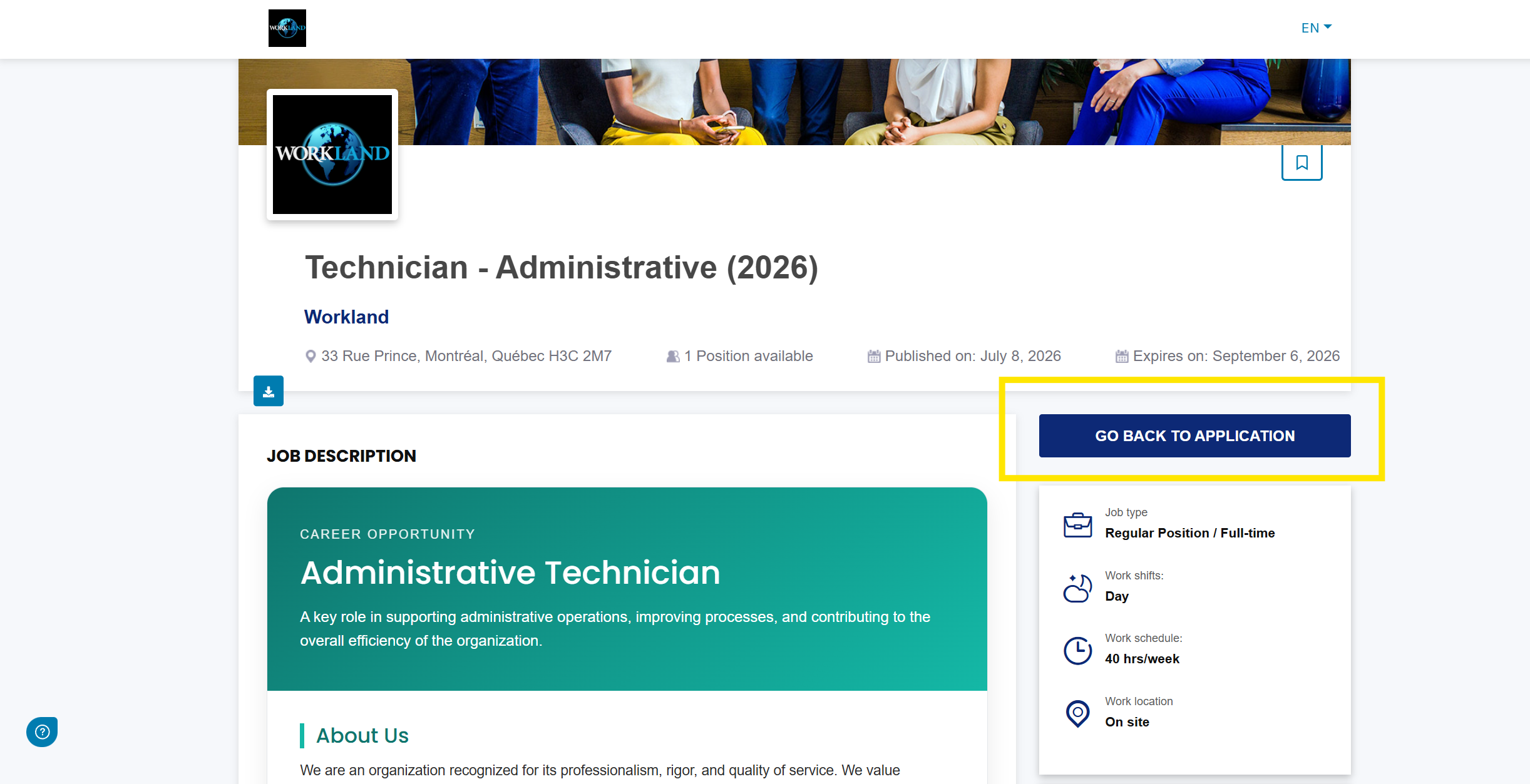
If you submit your mass applications, you will be automatically taken to the "incomplete application" tab to ensure you do not have a pending application. If you do, click the job link to be redirected to the job application to complete the employer's final requests.
FAQ
How do I change my default CV?
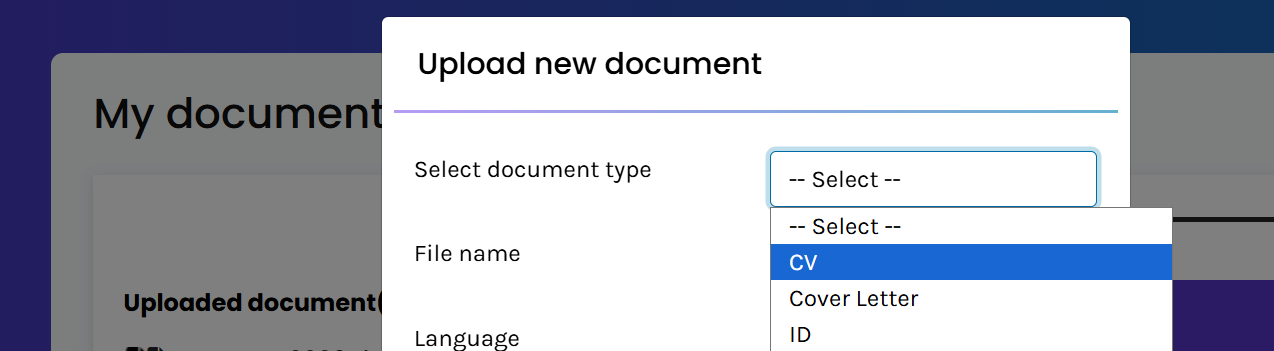
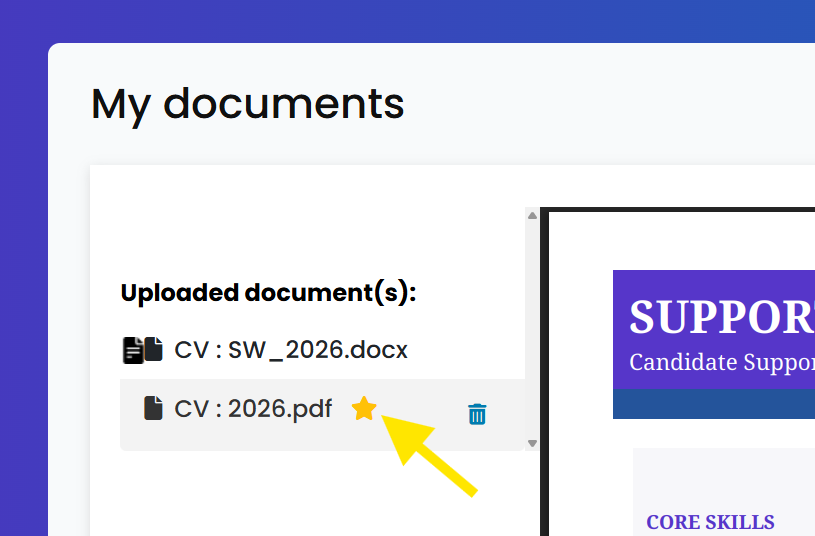
- Mass Apply uses the latest CV uploaded. In "My Documents", upload a new document and make sure to select the type of document as CV.
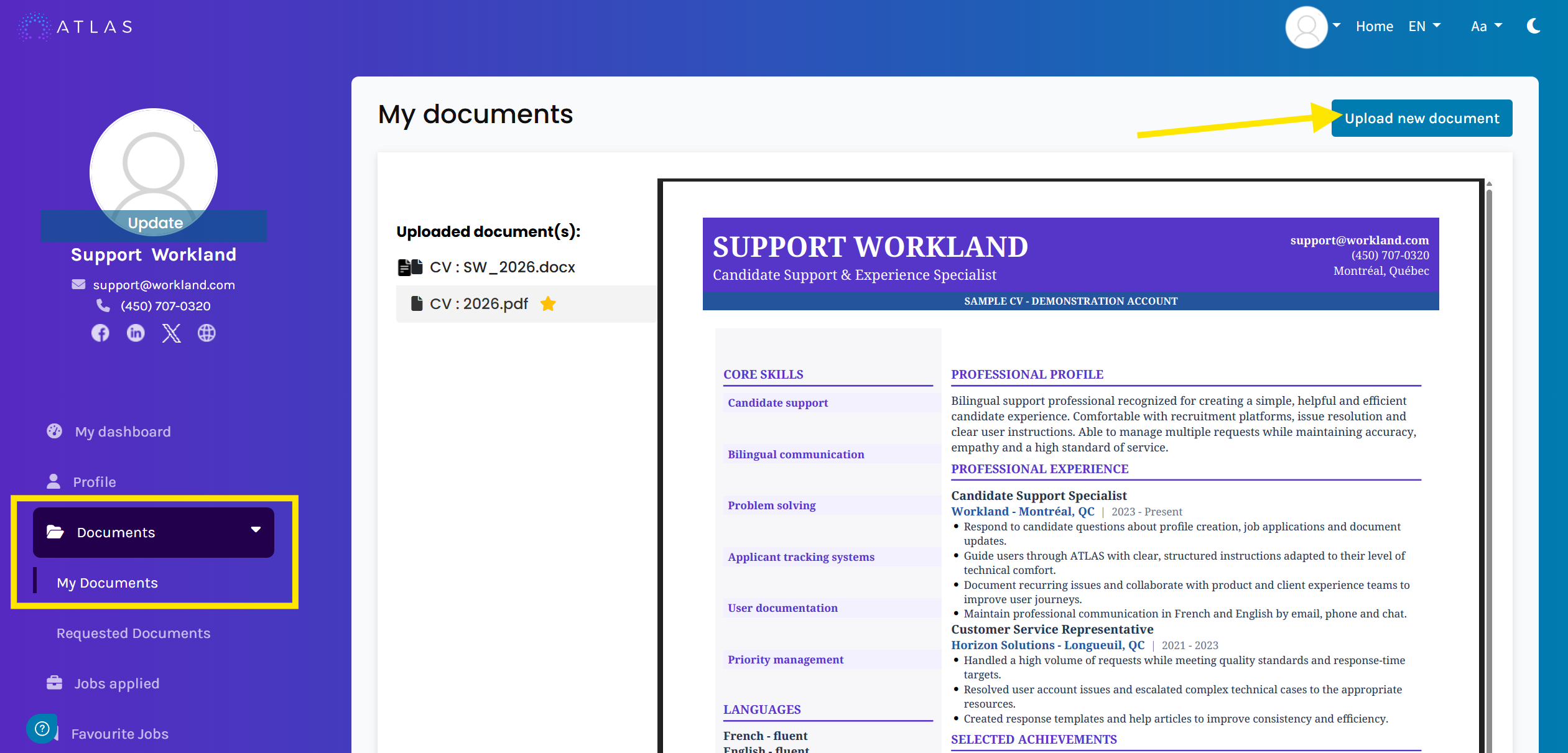
The star next to the uploaded document confirms the default CV.
For more articles, you may view our FAQ page on support.workland.com.Was this article helpful?
That’s Great!
Thank you for your feedback
Sorry! We couldn't be helpful
Thank you for your feedback
Feedback sent
We appreciate your effort and will try to fix the article